Webclass User Guide
Webclass User Guide
Explore our comprehensive user guide to easily navigate your online course materials, track your results, and access support features.
Explore our comprehensive user guide to easily navigate your online course materials, track your results, and access support features.
Welcome to your central learning platform. This portal connects you to your digital campus, training resources, and academic progress tracker.
Use this guide to:
Access your training resources.
Track subject due dates and progress.
Connect with dedicated student support teams.
You are never alone in your study journey. Contact our student training advisers by phone or email for technical support or study guidance.
Get started with your virtual classroom in three simple steps:
Log In: Locate your unique login credentials in your enrolment confirmation email and log into the Webclass portal.
Complete Admin Tasks: Verify your email, upload your identification documents, and complete your initial skills assessment.
Explore Your Dashboard: Watch the introductory videos to familiarise yourself with the platform.
Our support team is here to help if you have any questions during setup.
When you enrol with the College your login details will be sent to your emails with your ‘Enrolment Application Receipt Confirmation’. Ìý
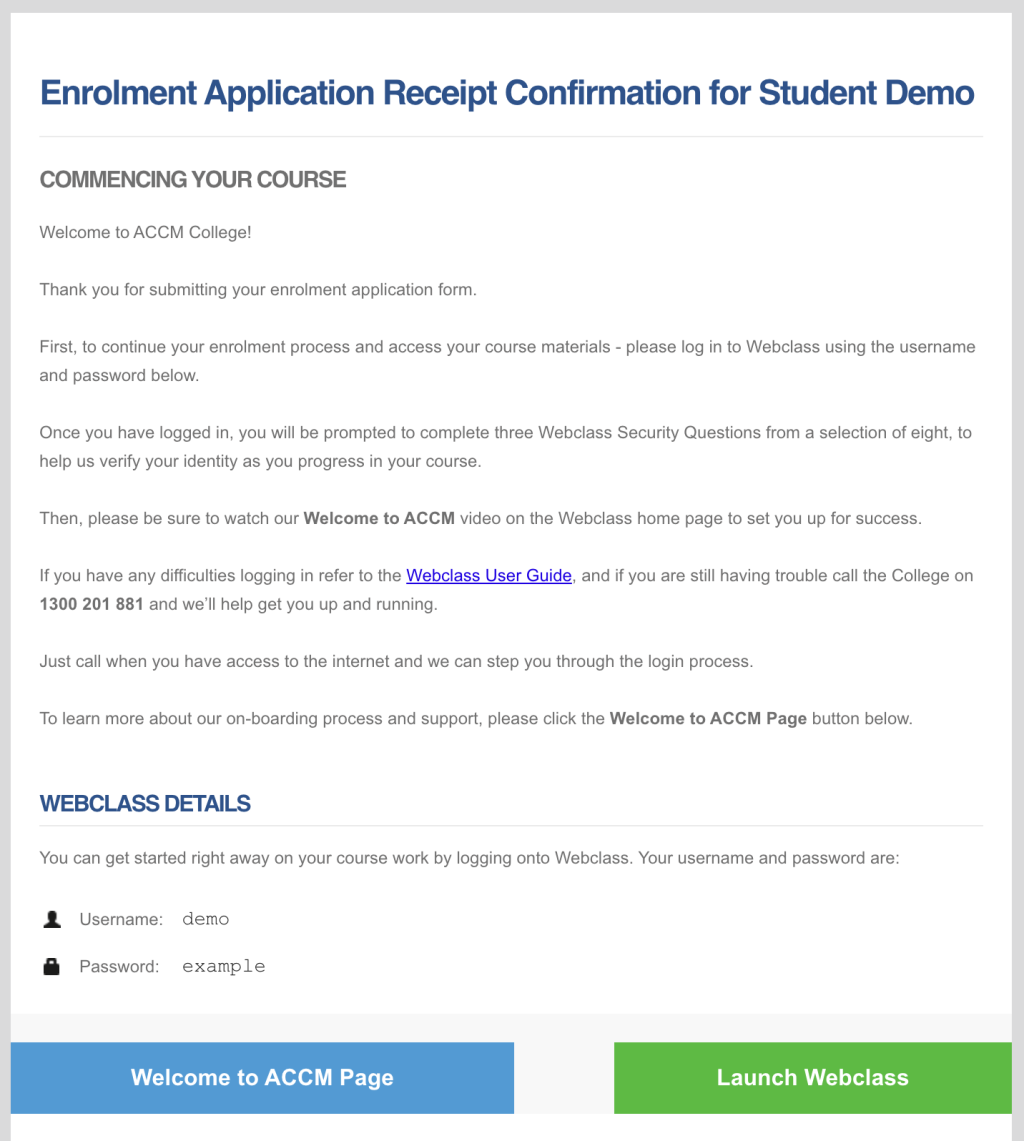
If you have not received your Enrolment Application Confirmation email, please check your Junk Mail or Spam folder before contacting the College.
Please Note: Returning students will remain with the same username and password as their previous enrolment with the College.
Registered Training Organisations must ensure the Authenticity of our student’s work.Ìý
This means verifying that the person who is enrolling, training and assessing is the same person that will be issued with a qualification or statement of attainment.
We do this in a number of ways, some of which we do not publicise.
Authenticity Checks (Secret Questions)
To meet student authenticity requirements, the platform periodically verifies your identity using secret questions.
How it works:
Setup: During enrolment, you will select and answer three out of eight secret questions.
Verification: While completing assessments, a question will randomly appear to confirm your identity.
Attempts: You have three attempts to answer correctly.
If you get locked out:
If you exceed three attempts, you will be redirected to the enrolment overview page.
A banner will instruct you to contact the College to unlock your assessment.
Once an ACCM staff member unlocks your account, you must re-enter your secret question answers upon your next login.
Alongside your login details a link to our learning platform, Webclass, will also be attached to your ‘Enrolment Application Receipt Confirmation’ email.
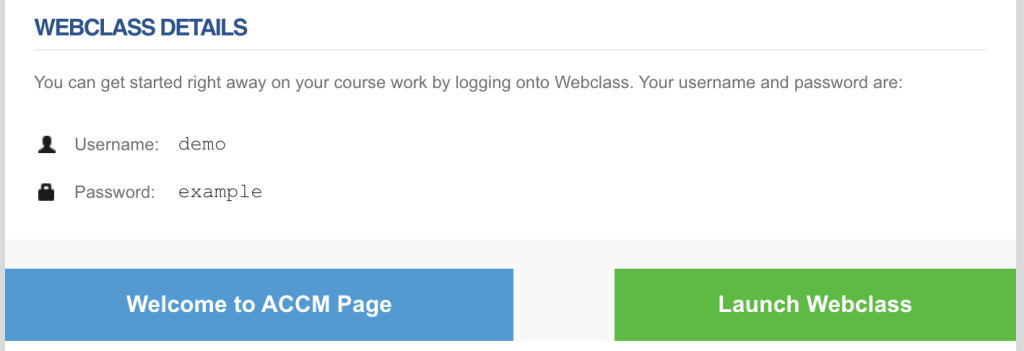
However, you can also access Webclass using the ‘W±ð²ú³¦±ô²¹²õ²õ’ button on the top right-hand side of our website.
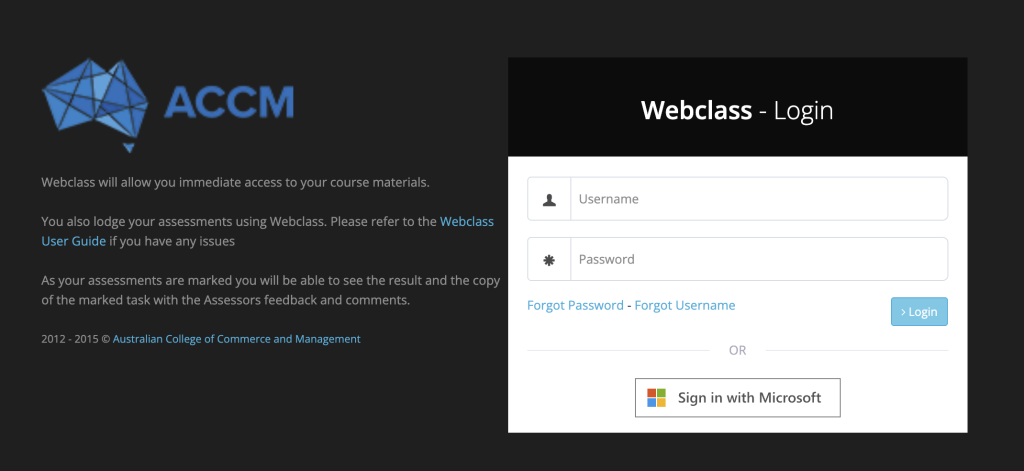
Once you open Webclass, you will be directed to the login page. Please input your details into the provided spaces and select the login button on the bottom right-hand side.
If you have forgotten your login Username or Password, you can request this information via the login page.
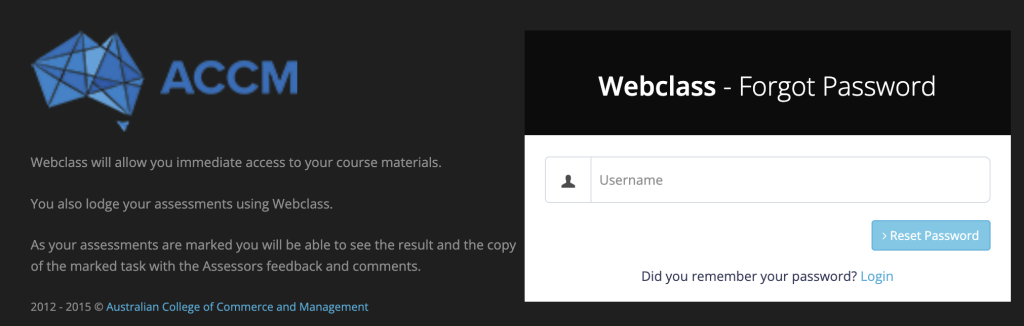
If you select theÌý‘Forgot Password'Ìýlink, you will be prompted to type in your Webclass username.
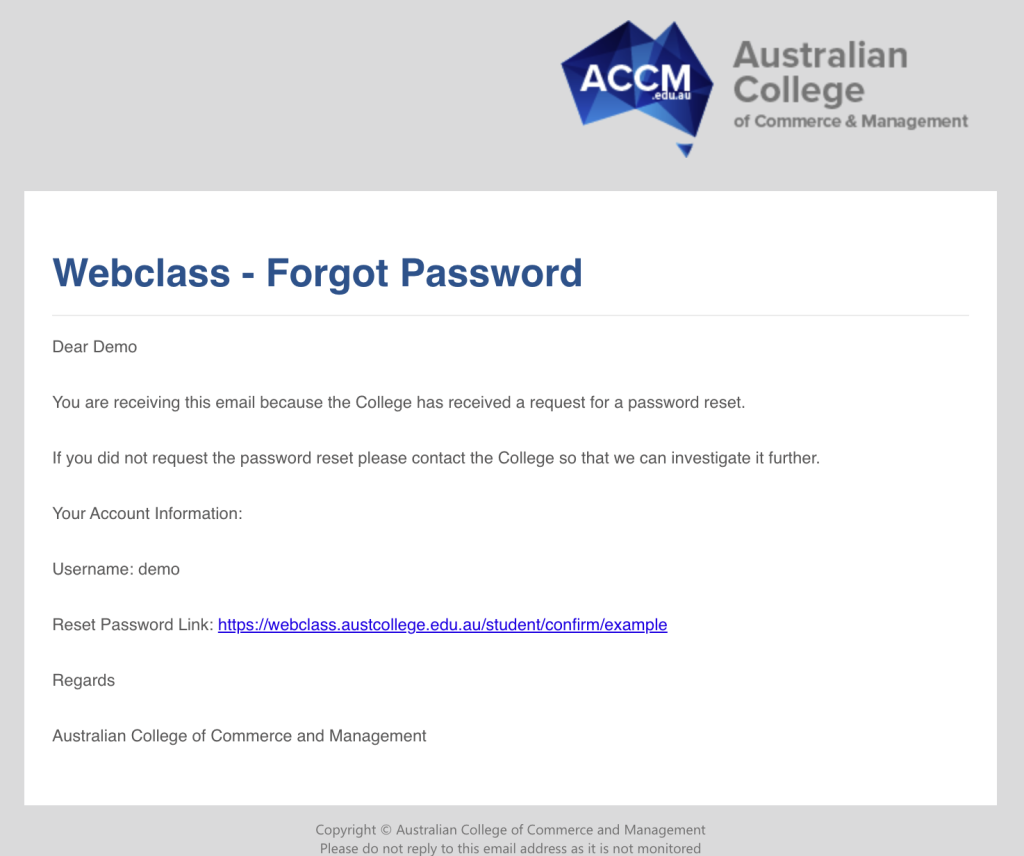
Doing this will allow the College to email you a link to update your Webclass password.
Simply select the link and update your details!
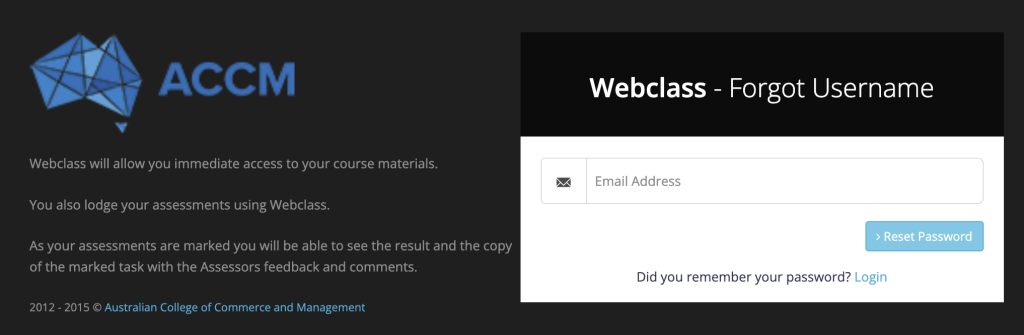
If you have forgotten your Username, select the ‘Forgot Username’ link on the Webclass login page. This will prompt you to input your email address where we will email your Webclass username.
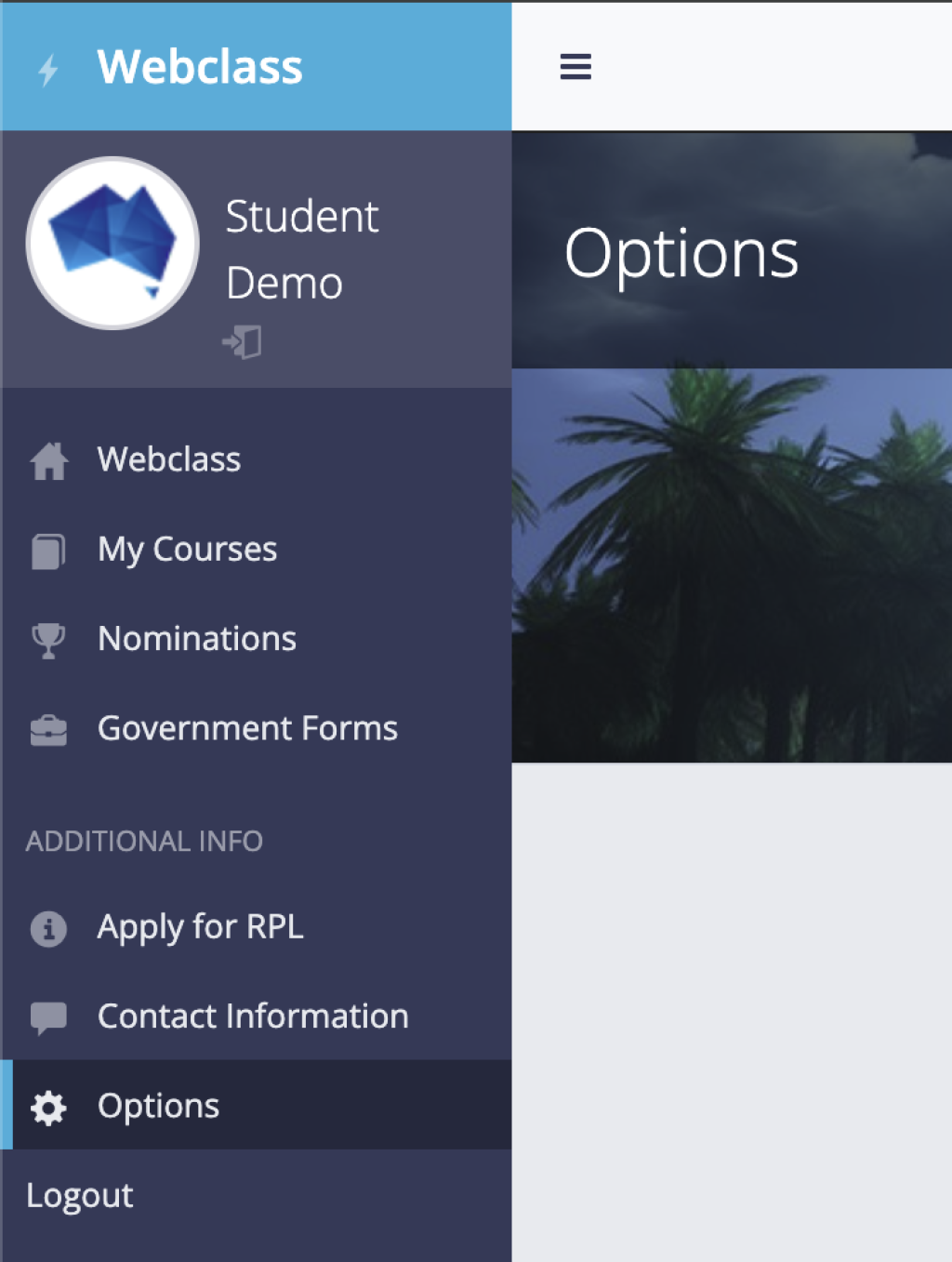
You can also update your password once you have logged into Webclass. After you log in you will be directed to the Webclass Home Page. To the left of this page is a Menu bar.
Select the ‼«±è³Ù¾±´Ç²Ô²õ’ tab located near the bottom of the menu bar:
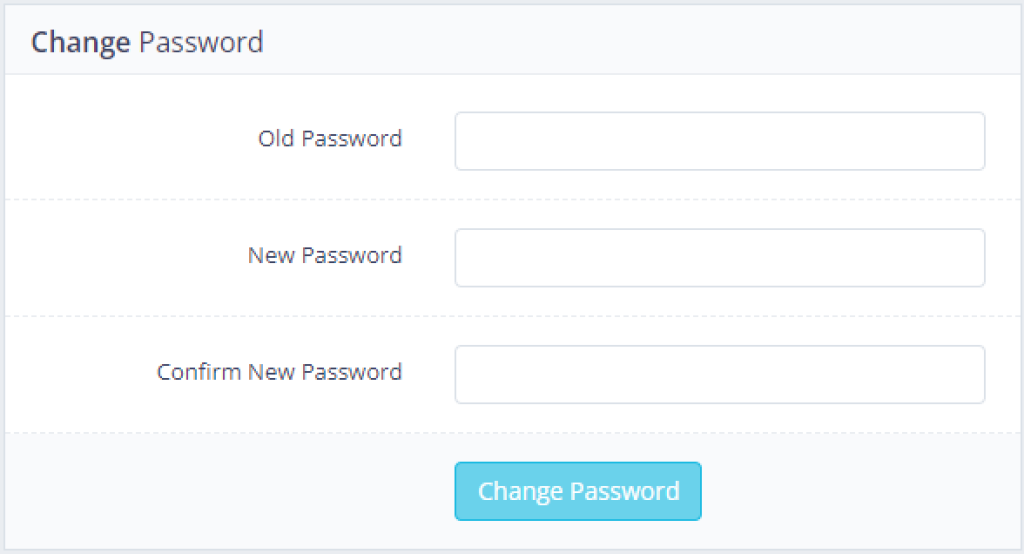
The options tab will have a section dedicated to changing your password:
To log out of Webclass, refer to the Webclass menu bar on the left hand side, and simply press 'Logout'.
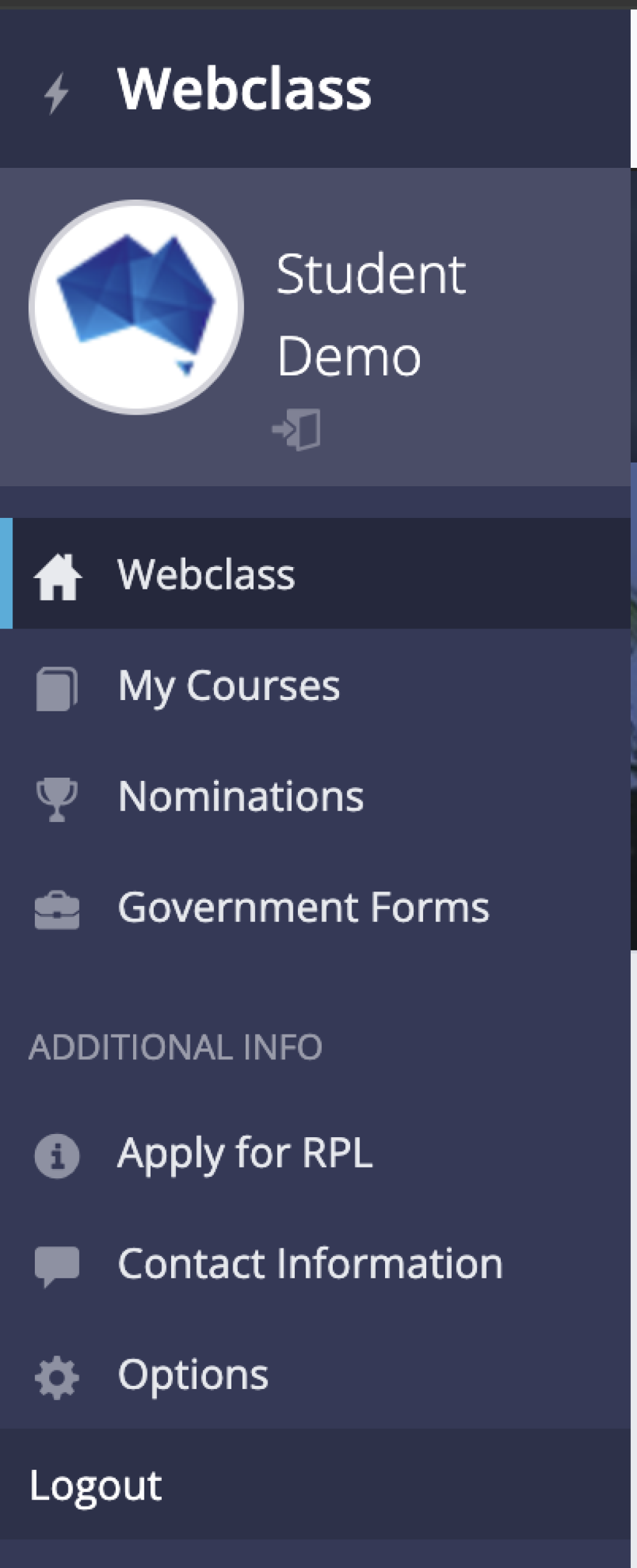
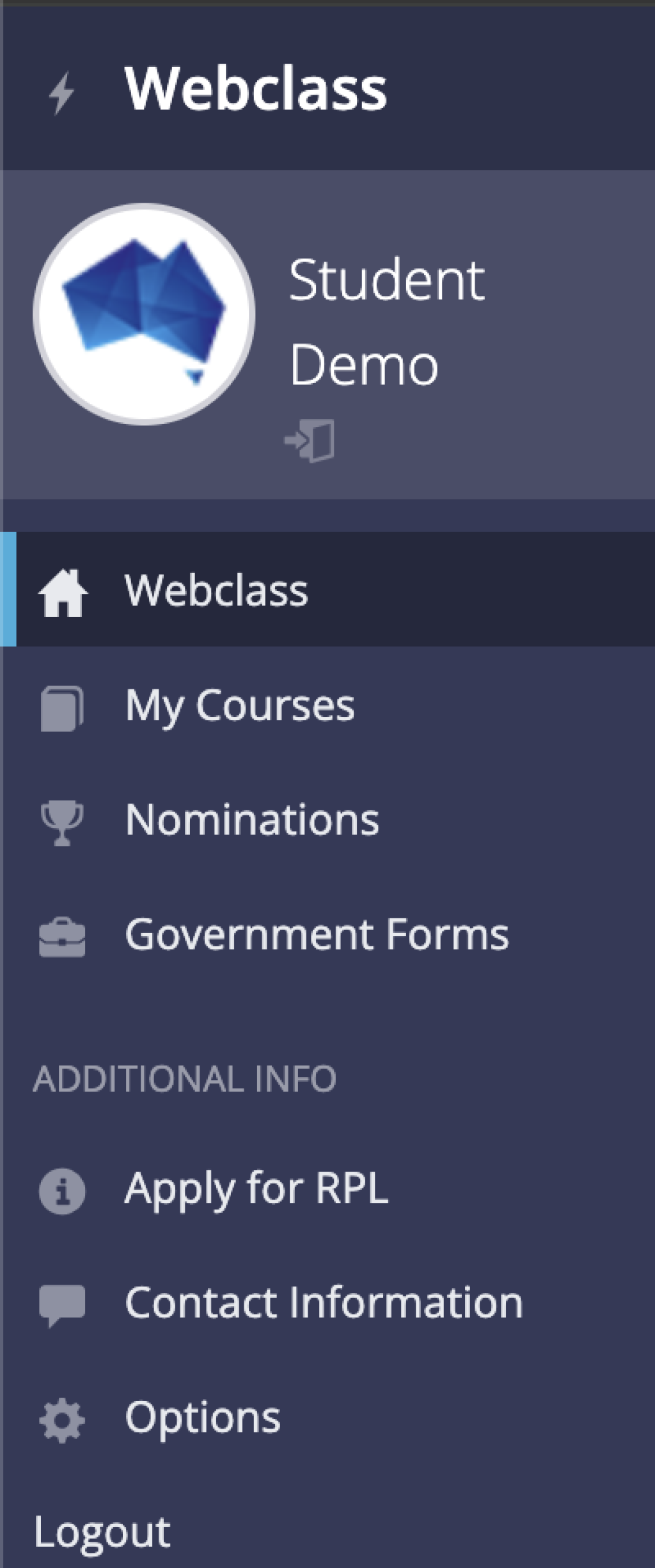
When you log into Webclass, you will see this menu on the left side of your screen
Your Webclass choices are:
Webclass - takes you back to the home page of Webclass
My Courses - takes you to courses you are enrolled in, as well as archived courses
Nominations - lists nominations you've received for Student of the Month
Government Forms - contains important forms like enrolment forms or invoices
Apply for RPL - allows you to submit applications for Recognition of Prior Learning
Contact Information - allows you to update contact information and USI
Options - this link allows you to change your password
Logout - this link when clicked will log you out of Webclass
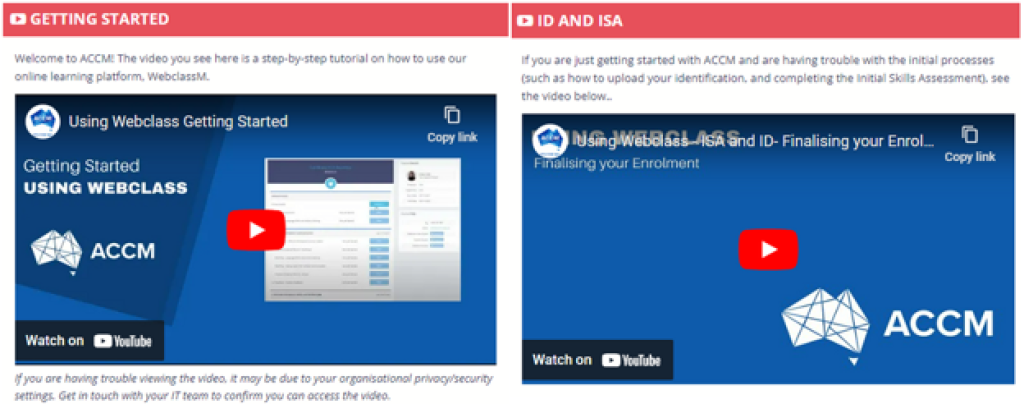
This section includes helpful videos that show you how to useÌý Webclass. The main video is Getting Started and shows the basics of using Webclass to complete coursework.
There is another video that shows how to complete the start-up documents of ID & the Initial Skills Assessment if needed.
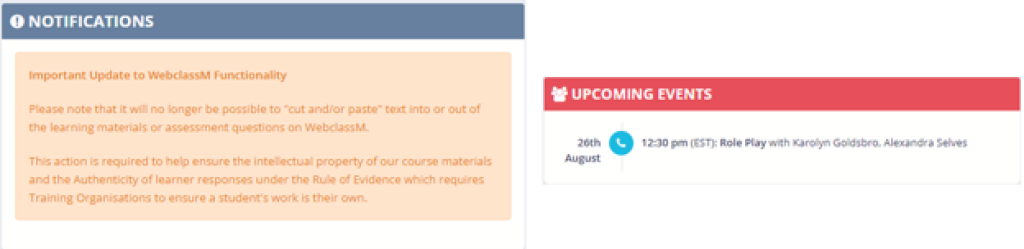
The Notifications section will give you important warnings or requests that you will need to action to progress your course. Under this section, sometimes you will see Upcoming Events.
This displays any upcoming bookings such as coaching sessions or role plays you have scheduled in.
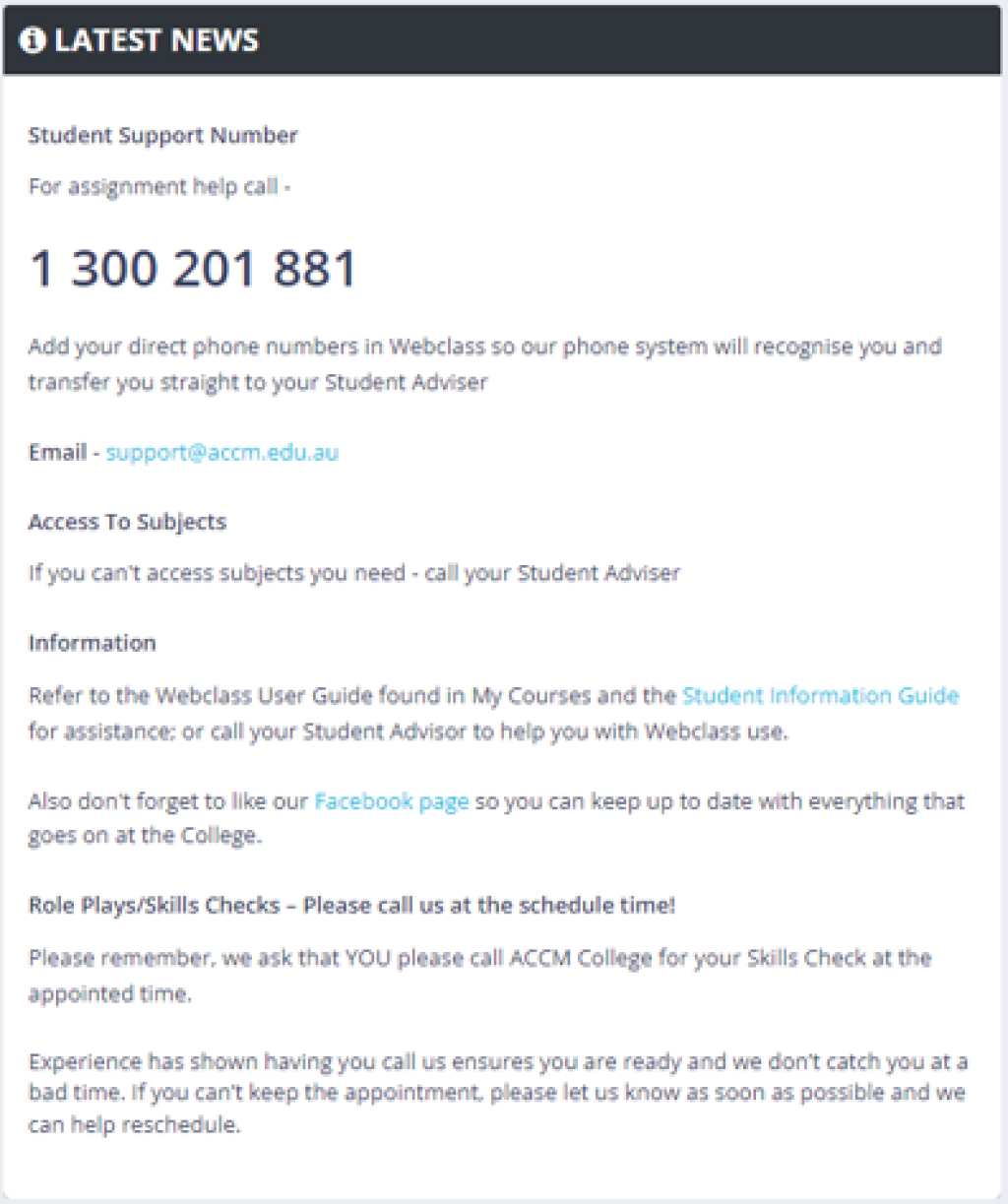
Under the Latest NewsÌýsection will display our contact details if you need help and any other ACCM College news and tips.
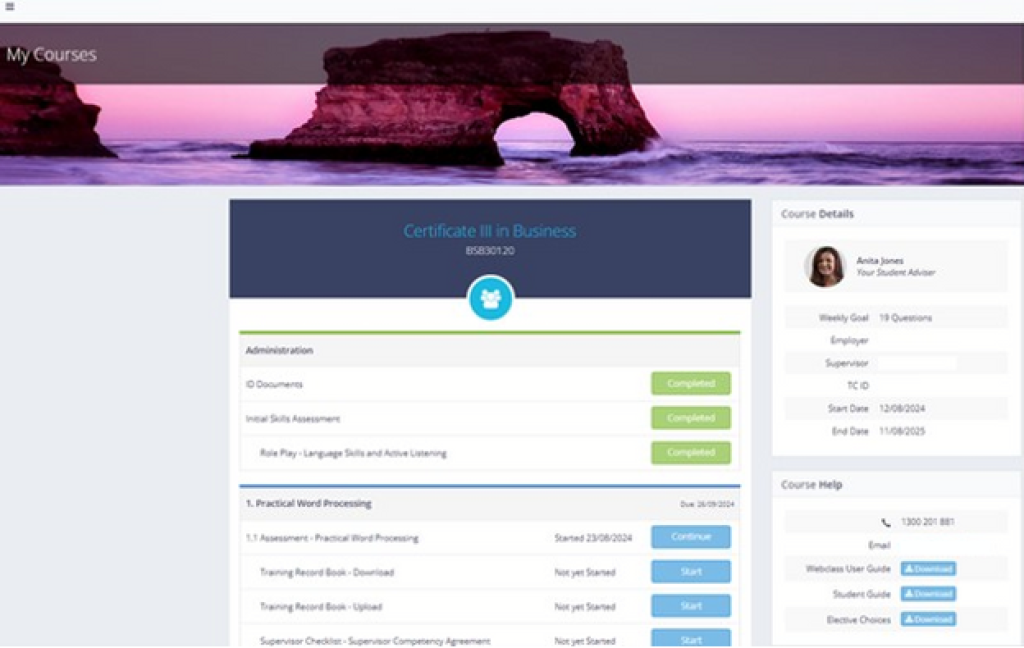
To access the My Courses page, select the ‘My Courses’ tab on the left-hand side, under the Webclass menu bar.
The My Courses page is where you will spend most of your time throughout your studies.
On this page you will find your Administration Tasks, Course Learning Materials and Assessment Activities, Subject Due Dates, Course Start and End Dates and all other key information required for you to successfully complete your qualification.
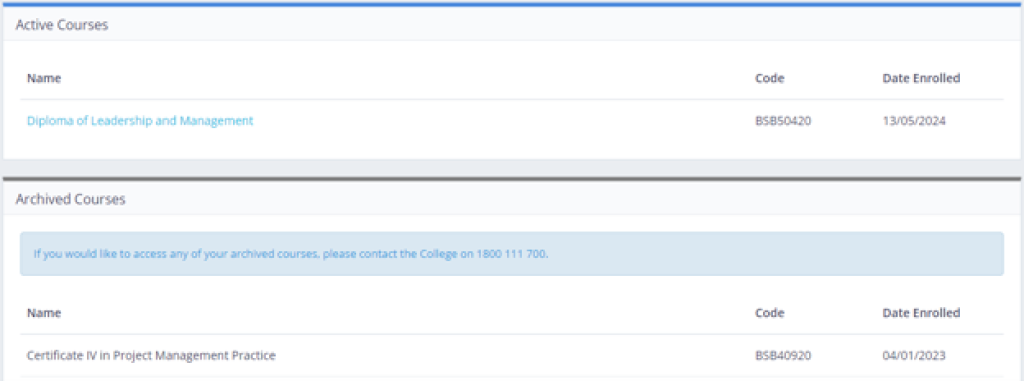
If you are a returning student to the College, when you select My Courses tab, you will be directed to this page:
This page contains all the Active courses you are currently enrolled in, as well as a list of any Archived courses. Archived courses are any courses you have completed with ACCM in the past. If you would like access to any of your archived courses, please give us a call.
To access your current course material, simply select your active enrolment under Active Courses and you will be directed to the My Courses Page.
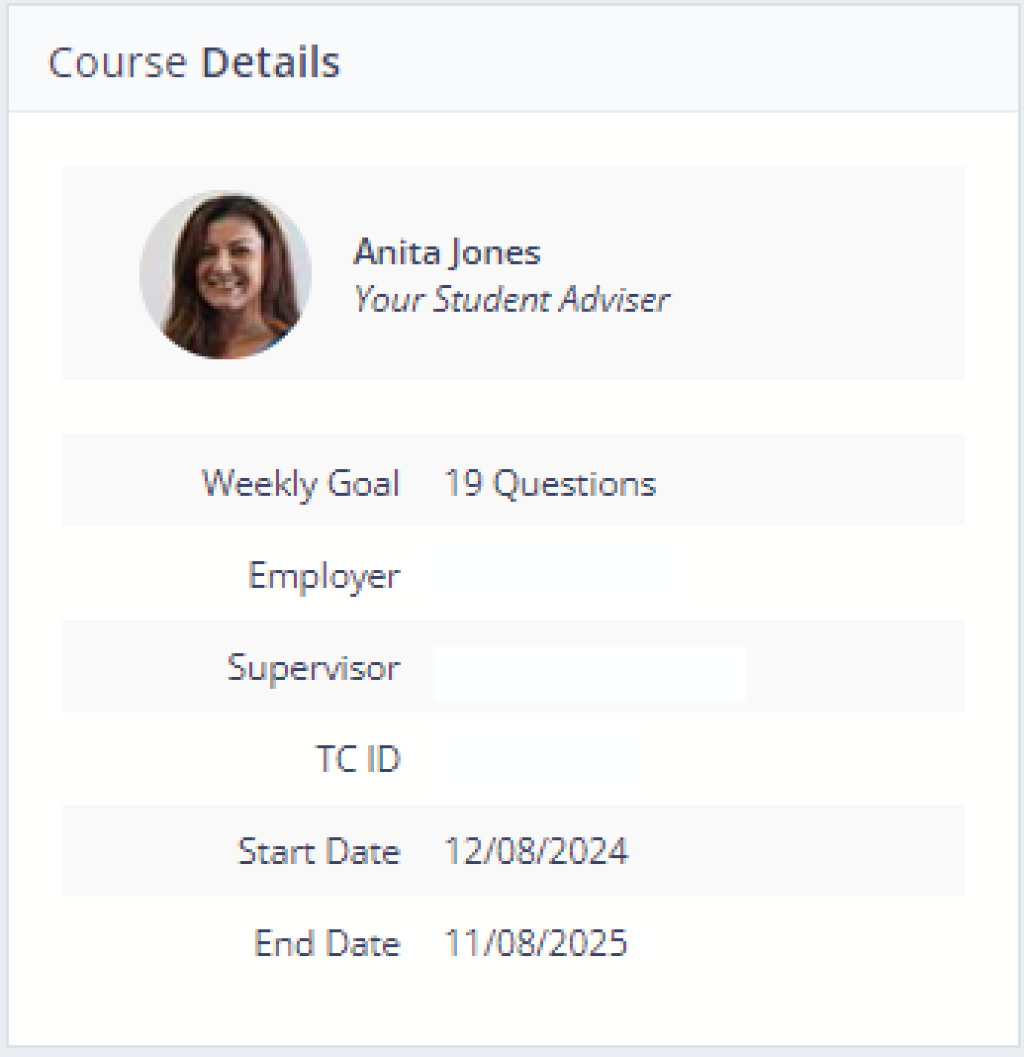
On the right-hand side of the My Course Page you will see a box called ‘Course Details’. This is where you will be able to see who your Student Training Adviser is.
To ensure you are provided continuous support throughout your studies, your Student Training Adviser has been assigned to you to as your main point of contact with the College. It is their role to assist you throughout your studies.
Below your Student Training Adviser, you will also see your Weekly Question Goal, Current Employer and Supervisor and your Course Start and End Dates.
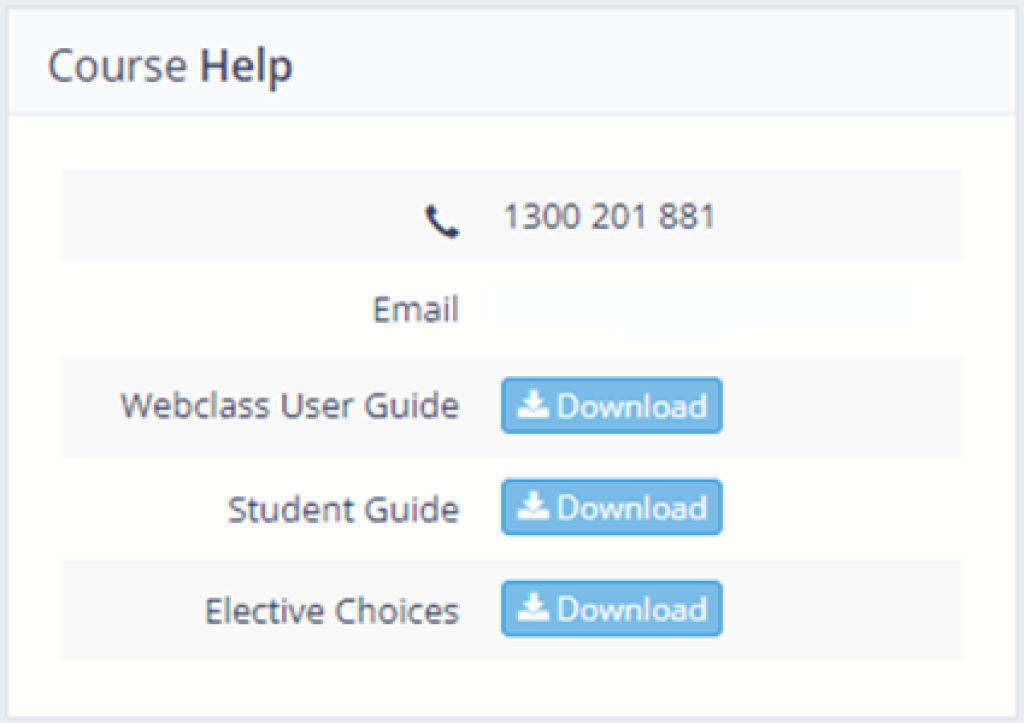
On the right-hand side will also see ‘Course Help’ Box.
This outlines the Colleges phone number to call should you need assistance, your Student Training Advisers email should you need to reach out to them, as well as PDF copies of this Webclass Guide, the Student Handbook and a detailed guide of all your core and elective subject choices.
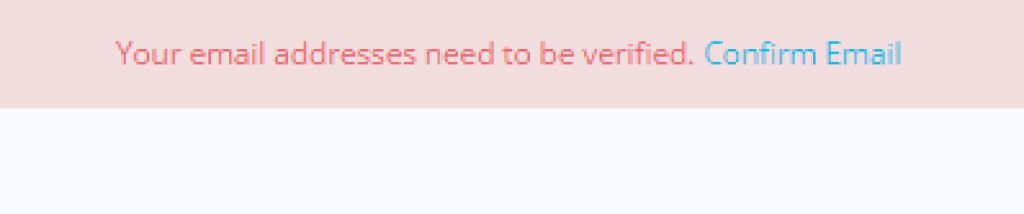
When you enrol with the College you will need to verify your email address.
A red banner will appear at the top of Webclass to flag to you when this task must be completed:
Simply select Confirm Email on the banner or select the Contact information tab on the Menu Bar. Ìý
Within the Contact Information tab, there will be another red bar, indicating that you need to verify your email again. Select the Send Verification Email button.
This will allow us to email you instructions on how to verify your email.
The bar should turn green and indicate what email the verification email has been issued to you.
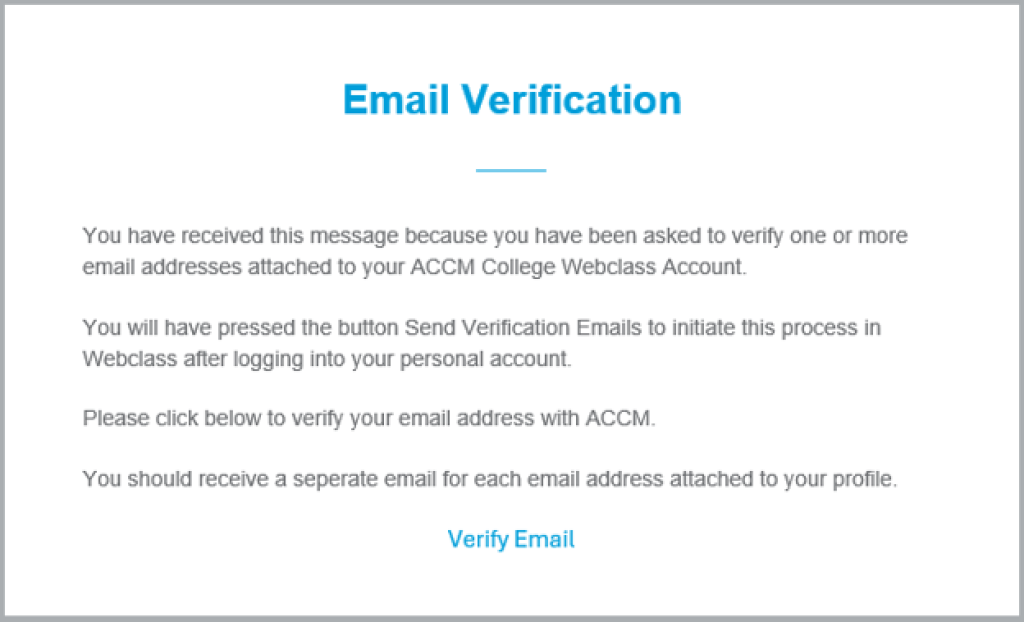
After a few moments you should receive a Verification Email to the allocated email address:
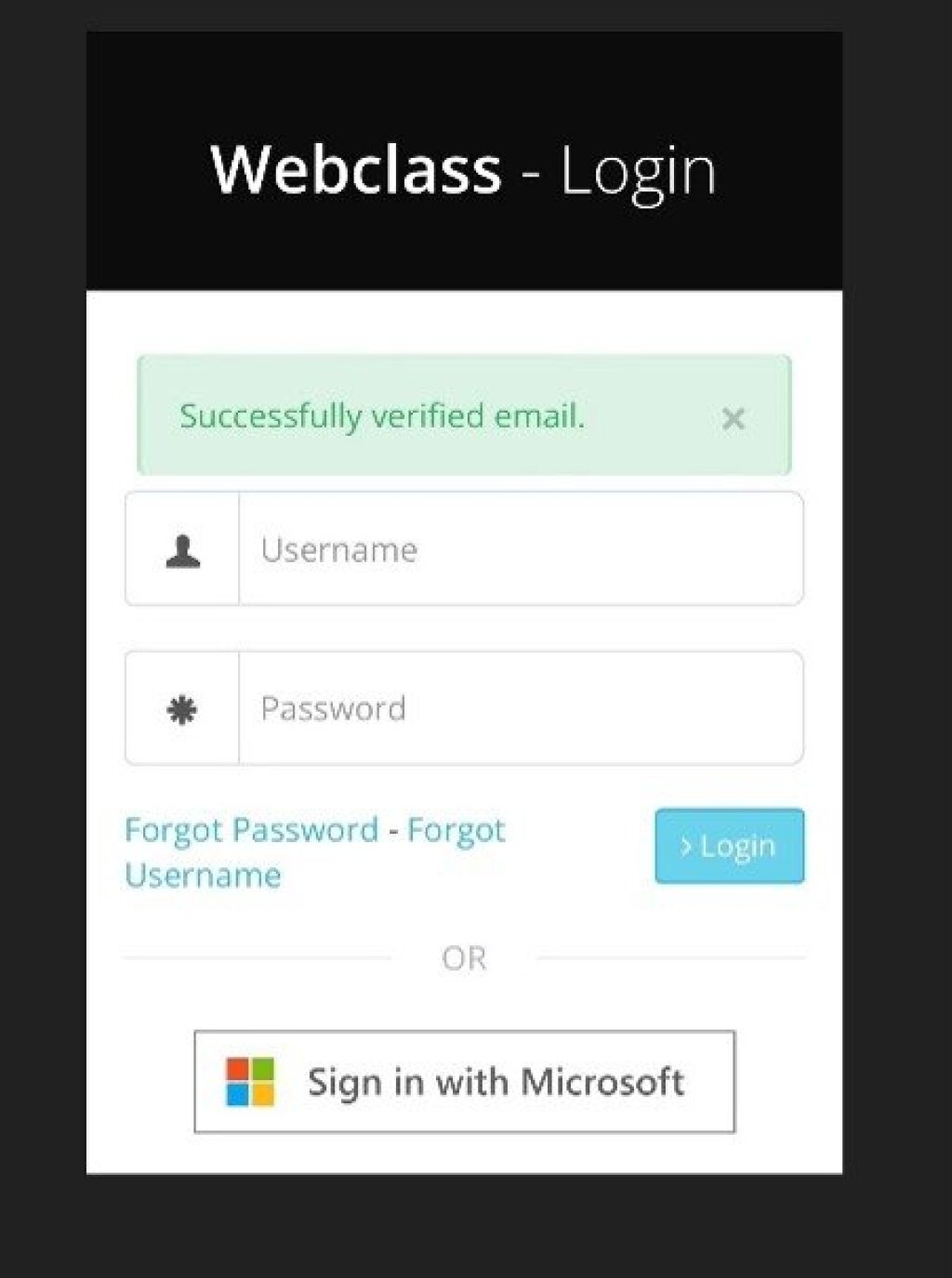
Select Verify Email, and you will be directed back to the Webclass login page, and your email verification will be completed.
There are several administration tasks you will need to complete to finalise your enrolment with the College. This includes verification of your Identification Documents. This is required by the government to confirm your eligibility.
Please Note: If you are not a trainee, or part of a government or subsidised program, while your USI should be sufficient, we may need to request additional information to verify your identity.
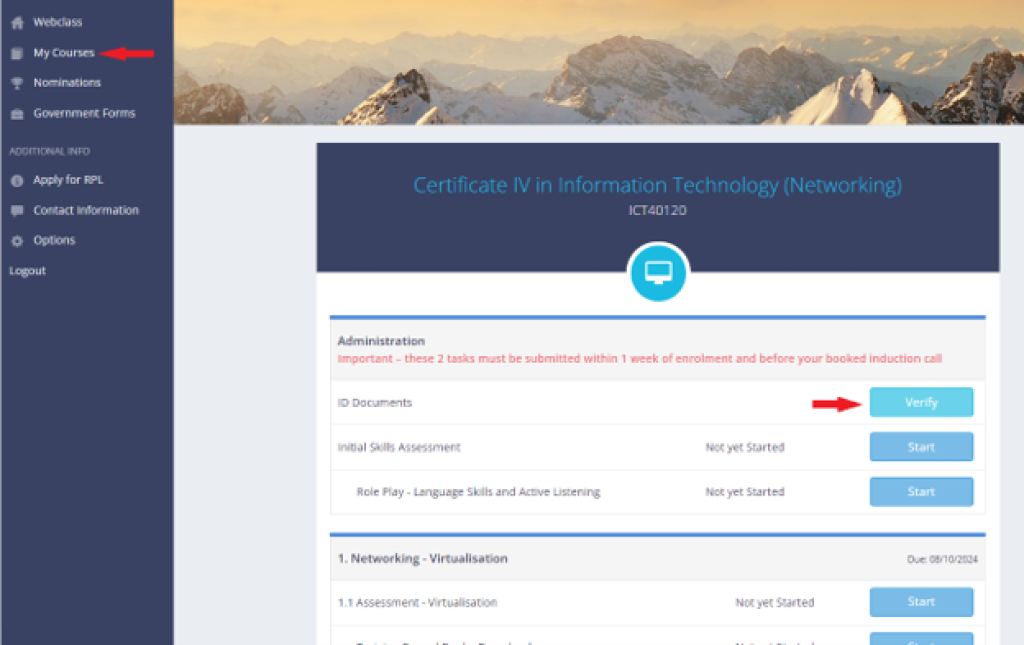
Your Identification Documents will be verified on Webclass. Refer to the My Courses Page and select your Active course (if required). The ID documents tab can be seen under the Administration Box
Select the Verify button. This will direct you to our ID verification platform: Green ID. Once you select verify, simply input the required identification information presented (Driver's License and Medicare card) and submit.
If you do not have a Medicare Card and/or Driver's License, don't worry! There are other forms of identification we can review. Such as:
Extract of Birth Certificate
A government issued Photo Card (Firearms or Proof of Age Card)
Rates, Gas, Electricity, Phone Bill or Car Registration
Bank Account Statement
Concession Card
Please contact the College on 1300 201 881, to discuss what alternate forms of Identification you may require.
For further information regarding our Identification Document Policies please see here
Your Initial Skills Assessment is an important part of your enrolment application process.
Completing this document helps us get to know you better, understand your goals, determine any opportunities for Recognition of Prior Learning (RPL) and forms the foundation of a Language, Literacy and Numeracy (LLN) Skills review.
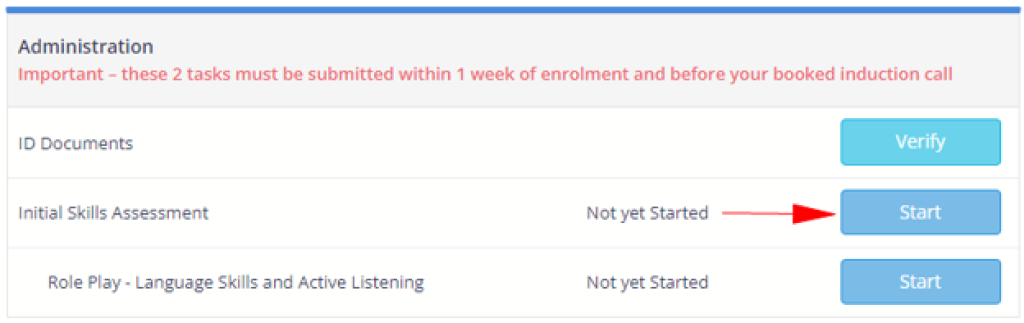
To get started with your Initial Skills Assessment, you will need to go onto the My Courses Page, then click into your current course. On this page you will find the Initial Skills Assessment under Administration. Click start to begin.
Take care to read and answer all the questions fully and to select save after each question. Once you’ve completed the final question, click Save Section to save your work. Once this is fully completed, click on the ‘Submit’ button in the bottom left corner of the page.
Please Note: Your Initial Skills Assessment will not be marked as completed until your Induction with a member of the Service One team is completed. The Service One team will be in contact with you to discuss booking your Induction shortly after you enrol with the College.
This activity will be completed during your induction with a member of the Service One team.
As part of your conversation, you will be assessed on your Active Listening skills. You do not need to do anything more than speak to a member of the Service One team. Like your Initial Skills Assessment, this Role play is an aspect of the Language, Literacy and Numeracy (LLN) Review.
To show your language and active listening abilities, the following skills should be demonstrated during your conversation:
using verbal cues like uhuhh, mmm
waiting until the other person finishes speaking
asking relevant questions
paraphrasing and summarising their points
The Upfront Assessment of Needs is an initiative of Skills SA - Department of Education.
The UAN is designed to ensure each learner in a Skills SA subsidised program is suitable for the program they wish to complete.
If you are undertaking an Information Technology, Finance, Accounting or Supply Chain qualification, this will apply to you. Trainees in a BSB qualification do not require the Upfront Assessment of Needs.
This in-depth process is designed to look at a range of factors surrounding the concept of suitability and supporting learner needs.
You can learn more about this mandatory government requirementÌýhere
Once you have navigated to your current enrolment, you will see a list of all the subjects you will be completing as part of your qualification.
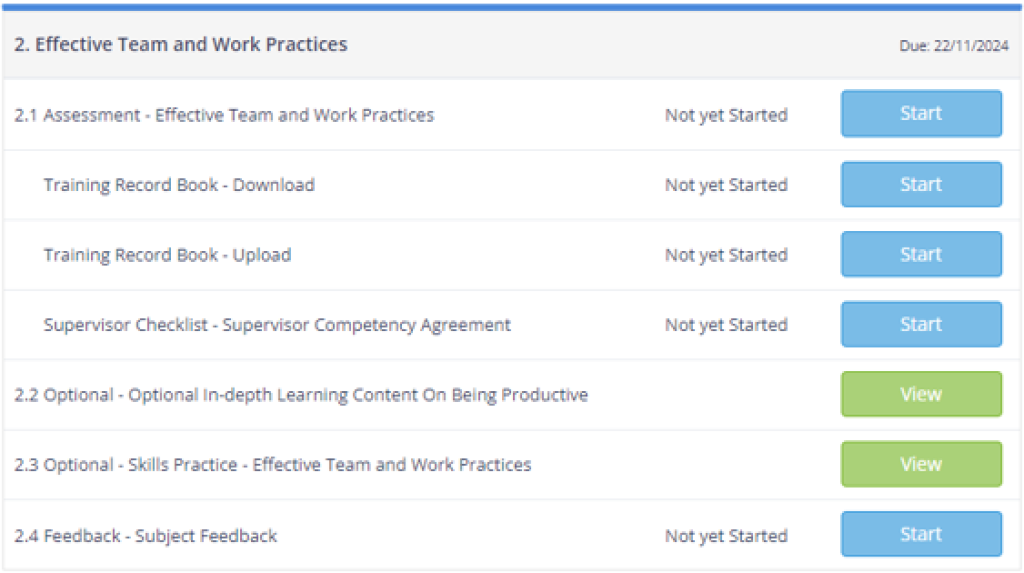
Subject Overview – Under each open subject (more on that under Locked Subjects) you will see an overview. This overview enables you to start or continue on with your coursework, access your Training Record Book/Practical Evidence Record, access your Supervisor Checklist and also provide you with links to optional course materials to help with your studies. You will also see an area where you can provide feedback about that subject once completed.
Due Dates – Each subject has an individual due date assigned. Should you need an extension, please give your Student Adviser a call to discuss. You will see each of these due dates in Webclass next to each of your subjects.
Locked Subjects – You will only have two Subjects open at one time. As you submit and gain a Competent Result for these Subjects, new Subjects will be unlocked for you. ÌýAny Subjects that are locked will appear with a padlock icon like the below.
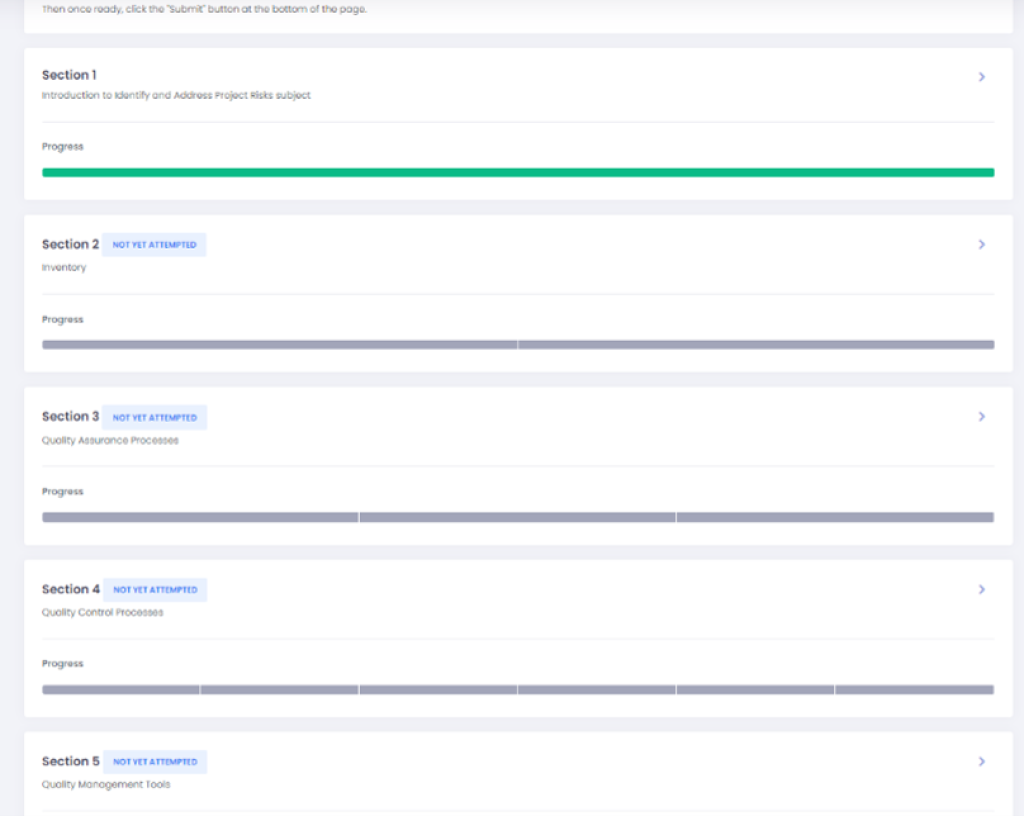
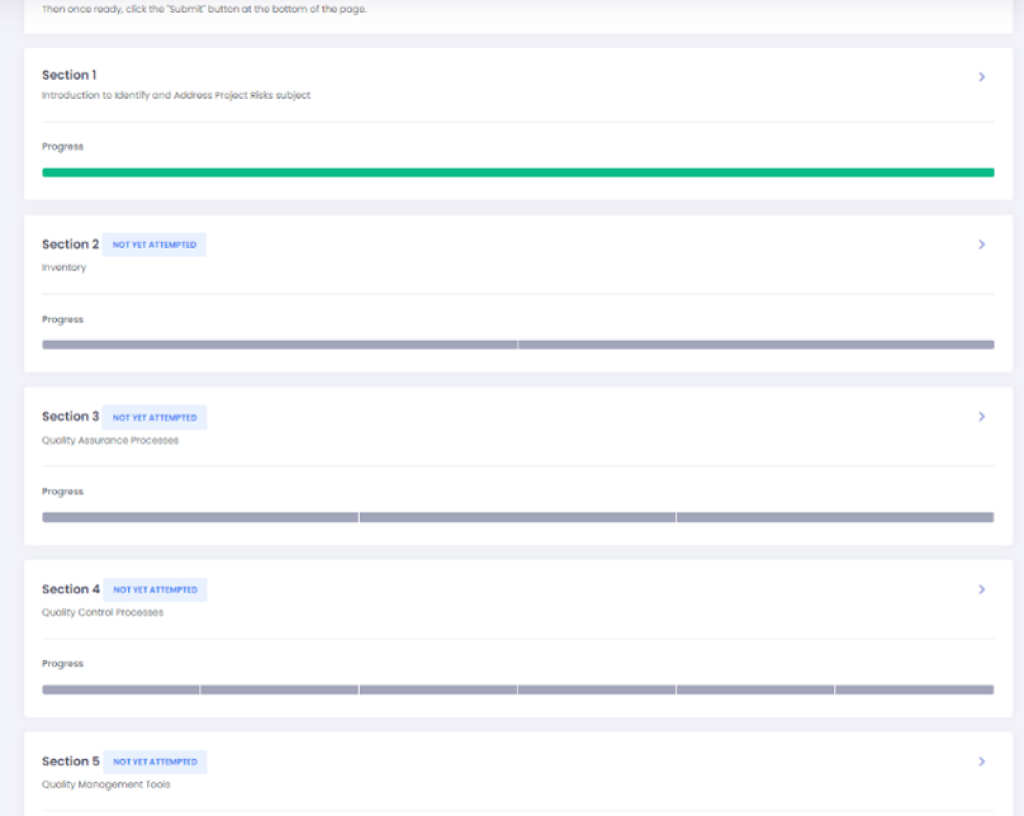
Section Overview Page- When you select a subject, you will find that your course material is divided into sections and these sections will appear on the Section Overview page. You must complete all sections to complete the subject.
Locked Sections – Our materials are intended to be completed progressively. It is important that you complete your study in sequence to ensure you don’t miss critical information from earlier sections. You are only able to have 5 active sections at one time. As you complete sections, another one will open. You will see the below in Webclass if a section is locked.
Once you have pressed Start on your Subject, you will be taken to the Section Overview Page. Within each Section, you will find your course materials first, then a series of questions and assessment activities to complete underneath.
Read and answer all the questions fully, (remember to select Save after each question) and when you reach the bottom of each Section select the Save Section button to save your work and move on to the next Section.
Remember – you will notice some sections are locked. It is important that you complete your study in sequence to ensure you don’t miss critical information from earlier sections. You are only able to have 5 active sections active at one time. As you progress and complete sections, new ones will automatically open for you to view and complete.
Ìý
Throughout your studies, you will come across various types of assessment activities and questions. Types of questions/activities you can expect are:
Multiple Choice Questions – Multiple Choice Questions will assess foundational and required knowledge for your qualification.
Short Answer Questions – Short answer questions will also assess foundational and required knowledge, as well as your current experience, skills and analysis abilities.
Reports or Longer Text Responses – These questions require you to demonstrate critical thinking, judgment and recommendations
Case Studies – Case Studies will require you to show the application of knowledge and understanding across realistic contexts and a range of situations. This may include problem solving.
Practical Activities – These are tasks that are required in the unit and presented as a final product to be assessed.
Workplace Research – This will be questions where you are required to research specific workplace policies and procedures and show your understanding of their application
Competency Conversations – We will verbally ask you questions to allow you to demonstrate your knowledge and understanding.
Role Plays/Skills Checks – Role Plays or Skills Checks will provide you with the opportunity to demonstrate your skills practically to the College. Role Plays will appear as a question within your subject with all the details you need to successfully complete the activity. You will need to contact the College to book this activity with a Student Training Advisor.
Ìý
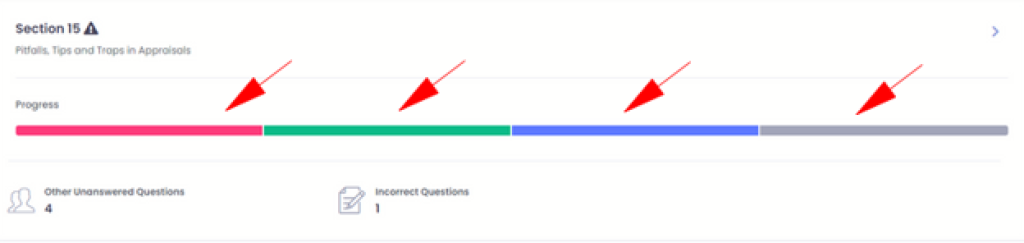
As you complete a Section you will see specific colours in the Progress Bar, which gives you information about what you’ve finished or still needs to be done:
Green – This is a multiple-choice question and automatically assessed by the System. If you have answered it correctly, it will be shown in Green. This can also be a written question or activity that has previously been assessed by the college and marked as correct.
Red – If a multiple-choice question is incorrect, it will show in red and you will need to reattempt the question.
Blue – This is a written question or an activity that requires you to upload a document. This question will be reviewed and assessed by an ACCM assessor once you complete and submit the task for review.
Grey – This question hasn’t been answered yet.
Purple – This is a written question or an activity that has been skipped.
If you are enrolled as a trainee (including Existing Worker Trainees), you must maintain a TRB for the duration of your traineeship and regularly show it to your employer.
Managing Your TRB
Start Early: Download the TRB at the beginning of every subject.
Format: Update the document using a word processor, or print and scan/photo it.
Timeline: Keep updating your record book as you progress through the subject.
Submission: Upload the completed document at the end of the subject.
Logging Requirements
What to Record: Document the work activities you undertake, focusing specifically on the new tasks learned in each subject.
Duration: Complete these details over the course of the subject. In most cases, you must log activities over a minimum of 30 days (one month).
Practical Evidence Records (PER)
If you are a non-trainee (including private, government-subsidised, employer-sponsored, or short course students), you must complete a PER for each subject.
The PER requires you to explain how you have demonstrated subject activities at work (current or past) or in your personal life.
Managing and Submitting Your PER
Format: Update the document using a word processor, or print and scan/photo it.
Timeline: Maintain your record book while progressing through the subject.
Submission: Upload the completed document at the end of the subject.
If You Are Not Currently Working
Delayed Evidence: You can often gather evidence from later subjects or personal activities.
Process: If you need more time, contact your Student Adviser. You can submit your main assessment first, then upload the PER at a later date to finish the subject.
Need Assistance?
The listed tasks are not the only ways to prove competence. If you struggle to find suitable opportunities, contact your Student Adviser to find alternative solutions.
The Supervisor Competency Agreement
Your supervisor plays a critical role in your traineeship by confirming your on-the-job mastery. At the end of each subject, they must complete the Supervisor Competency Agreement to verify your workplace skills.
Workplace Competence
To prove workplace competence, you must complete every task in the checklist to your organisation's standards. These skills must be demonstrated:
Across a range of contexts
Consistently over time
Using the Supervisor Support Pack
Every subject includes a downloadable Supervisor Support Pack in the Competency Agreement section. Download this pack as soon as you start a subject and hand it to your supervisor.
The pack contains:
Official Standards: The exact language from the Unit of Competency.
Plain English Explanations: Clarified criteria to remove any confusion.
Suggested Activities: Practical tasks to help your supervisor observe your skills.
If the suggested activities do not perfectly match your workplace environment, contact us immediately so we can help customize your opportunities.
Ìý
Employer Sign-Off & Workplace Competence
Government traineeship rules require your employer to sign off on your on-the-job competence for every unit/subject. Once you complete your ACCM theory work, you must demonstrate those practical skills in the workplace.
Step 1: Access the Forms
Download: Get the Supervisor Checklist - Supervisor Competency Agreement from the final section of each subject (usually titled "Completing the...").
Print: Print hard copies of any assessment pages that require physical supervisor signatures.
GTO Students: If you are with a Group Training Organisation, check with your Field Officer to confirm who should sign this form.
Step 2: Get Signed Off
Ask your employer to complete the checklist and sign it once you demonstrate the required skills.
Signature Rules: Signatures must be handwritten (real) or official digital signatures.
Important: Typed computer fonts are strictly rejected by State Training and will be returned for correction.
Step 3: Submit Your Documents
Upload the completed and signed document into the designated question on Webclass.
Lodge it alongside your main assessment.
Note: All Supervisor Competency Agreements and your Training Plan must be signed before your traineeship can be officially finalised.
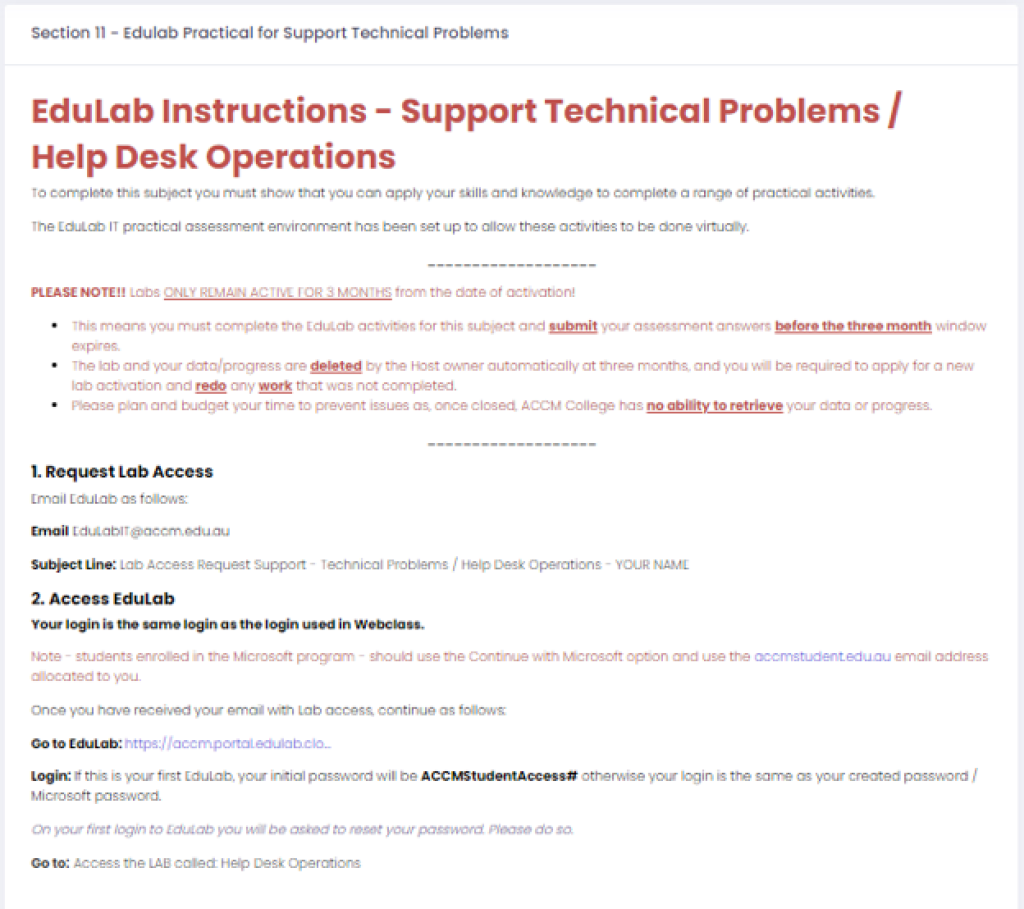
Students enrolled in an Information Technology qualification will also be provided access to a service called Edulab.Ìý Edulab is a third party platform, where our IT Student Training Advisors have set up virtual machines for IT students to complete various activities. These are integrated within your subjects and known as Lab’s.
You will need to request access to a Lab in order to complete these activities. When you come across a Lab, you will be asked to email EduLabIT@accm.edu.au to be provided access.
Labs can take up to 72 hours to set up, so it is important that you request access as soon as you come across a Lab section.ÌýÌý
Labs only remain active for 3 months, meaning you must complete and submit your answers before the 3-month window expires.
If you fail to complete all activities within the allocated time frame, all data will be automatically deleted by the Host Owner.
ÌýIf this occurs you will need to access to College to request access to your Lab again and redo any work you have completed previously within the Lab. ACCM College has no ability to retrieve your data or progress.Ìý
For students completing Accounts Administration or Accounting and Bookkeeping qualifications, there may be practicals that require you to access Xero or MYOB trial versions. Within your course materials, we provide you with full instructions on how to set up your trial versions and how to navigate the software.
MYOB –Ìýthis trial version is active for 6 months from the day you set it up. Every time you log in, you will see how many days are remaining in a banner across the top of your page.
Xero –Ìýyou only have 30 days before the trial version resets and removes all entries you have made. It is critical you undertake this within 20 days to allow time for marking and corrections. If Xero resets before you are assessed as competent, you will have to undertake the activities again.
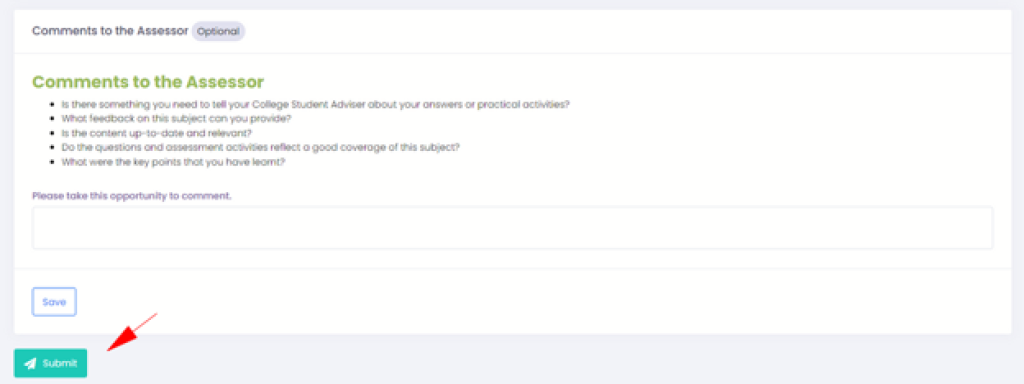
Once you have completed all the sections listed within a subject, you can submit it for marking. Prior to submitting your work, make sure you have checked each section so that no questions are unanswered, incorrect or skipped; as indicated by the icons and colour marking system.
A submit button will then appear at the end of the assessment task after the Comments to the Assessor section. Select this button, and your subject will be sent for marking.
Please Note: The Submit button will not appear until you have completed all required coursework within your Subject.
You will notice the word Submitted is displayed within the first line of the subject you have submitted. This means your task has gone through for marking and is being assessed. Whilst your subject is being marked, you will not be able to access it.
Once an ACCM Student Adviser has assessed your task, you will receive your results and feedback via email.
You can then log into Webclass, re-access your subject and review your results.
Ìý
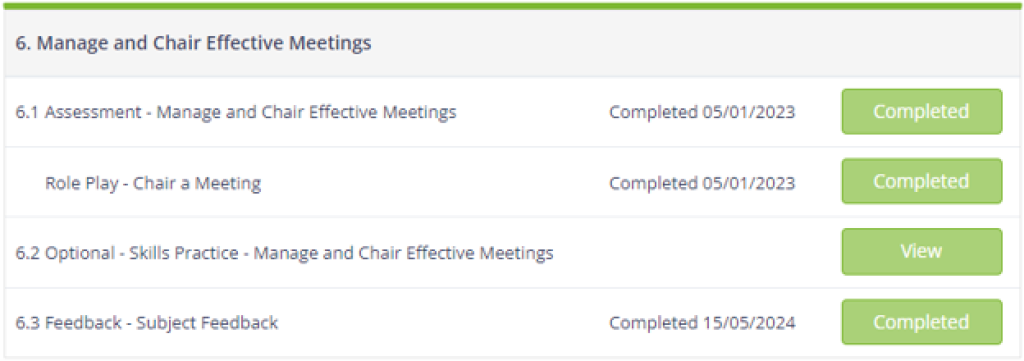
If your task is assessed as Competent, you will see the wordÌýCompletedÌýdisplayed within the first line of your subject. It will look similar to the below in Webclass:
Ìý
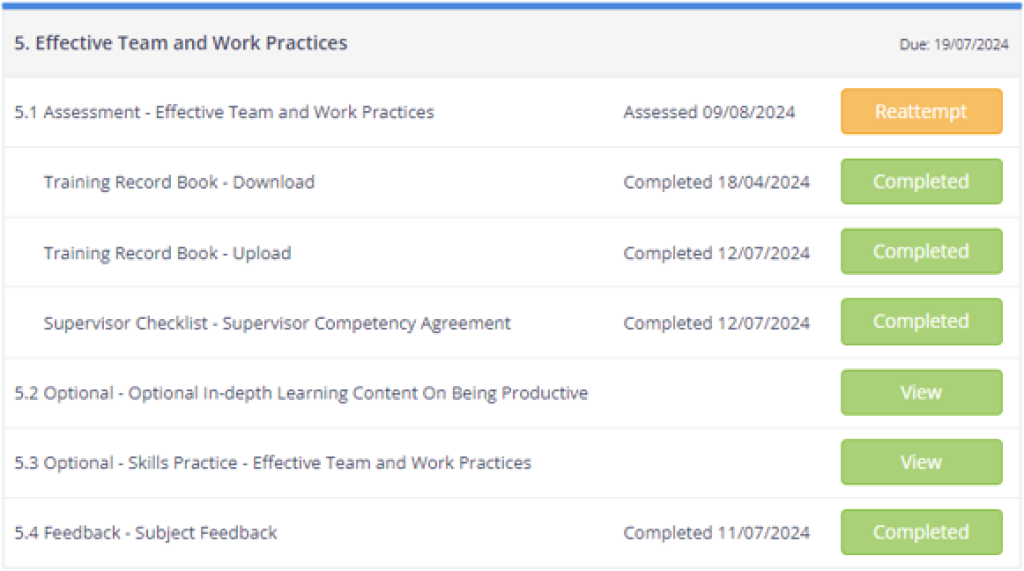
If your task is assessed as Not Yet Competent, you will notice the wordÌýAssessedÌýis displayed within the first line as well as a yellow button displayÌý'Reattempt'. This means there will be areas to review, revisions required, or sections left to complete. In Webclass, you will see similar to the below:
When you press the Reattempt button, your subject will open back up and you will see areas that you will need to review.
Green – These questions are correct! They may be a system assessed question, written question or activity, but have been assessed as Competent.
Red – If a system assessed question is still incorrect, it will show in red and you will need to reattempt the question.
Blue – This is a written question or an activity that you have reattempted. This question will be reviewed and assessed by an ACCM assessor once you complete and resubmit the task for review.
Grey – This question hasn’t been answered or attempted yet.
Yellow – This is a written question or activity that requires some revision. You will find feedback from your Assessor that will provide guidance or information that will help you revise your answer.
If the guidance and feedback you are given doesn’t help you or you want to discuss the result, please give us a call straight away.
If you wish, you can also arrange a coaching session for additional support. Just give your Student Adviser a call and we’ll book a session as soon as possible!
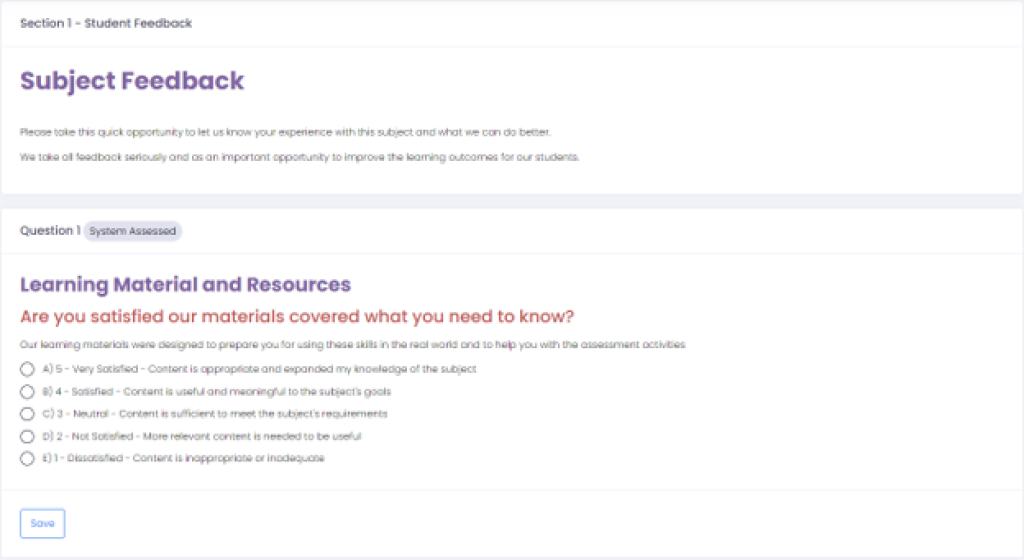
At the end of each subject, you will find an area which allows you to submit optional feedback about the subject. This covers the learning materials and resources, assessment questions and activities, achievement of your learning outcomes and any other relevant feedback you may have. To submit your subject, simply press ‘Start’ next to ‘Feedback - Subject Feedback’.
Once you’re in the feedback section, please think about the subject you’ve just completed, then read and answer each question.
If throughout your subject you notice any errors (typographical mistakes, poor formatting etc), or if you have any suggestions about a task, please let us know by contacting your student adviser or sending any email to contact@accm.edu.au.